AO3: Advanced Blocker

Block works by tags, authors, titles, word counts, and more. Filter by language, completion status, and primary pairings with customizable highlighting.

You will need to install an extension such as Tampermonkey, Greasemonkey or Violentmonkey to install this script.

You will need to install an extension such as Tampermonkey to install this script.

You will need to install an extension such as Tampermonkey or Violentmonkey to install this script.

You will need to install an extension such as Tampermonkey or Userscripts to install this script.

You will need to install an extension such as Tampermonkey to install this script.

You will need to install a user script manager extension to install this script.

(I already have a user script manager, let me install it!)

Advertisement:

You will need to install an extension such as Stylus to install this style.

You will need to install an extension such as Stylus to install this style.

You will need to install an extension such as Stylus to install this style.

You will need to install a user style manager extension to install this style.

You will need to install a user style manager extension to install this style.

You will need to install a user style manager extension to install this style.

(I already have a user style manager, let me install it!)

Advertisement:

Author
BlackBatCat
Daily installs
2
Total installs
974
Ratings
8 0 0
Version
4.2.3
Created
2025-09-18
Updated
2026-06-17
Size
145 KB
License
MIT
Applies to

AO3: Advanced Blocker

Block works on AO3 by tags, authors, titles, summaries, word counts, and more. Filter by completion status, language, last update, and primary pairings. Customize what you see—or don't.
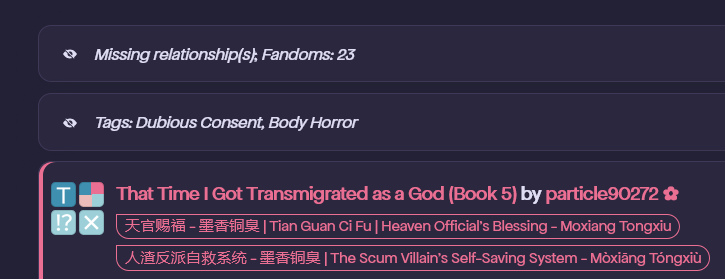
Advanced Blocker in action


✨ Features

Tag Filtering

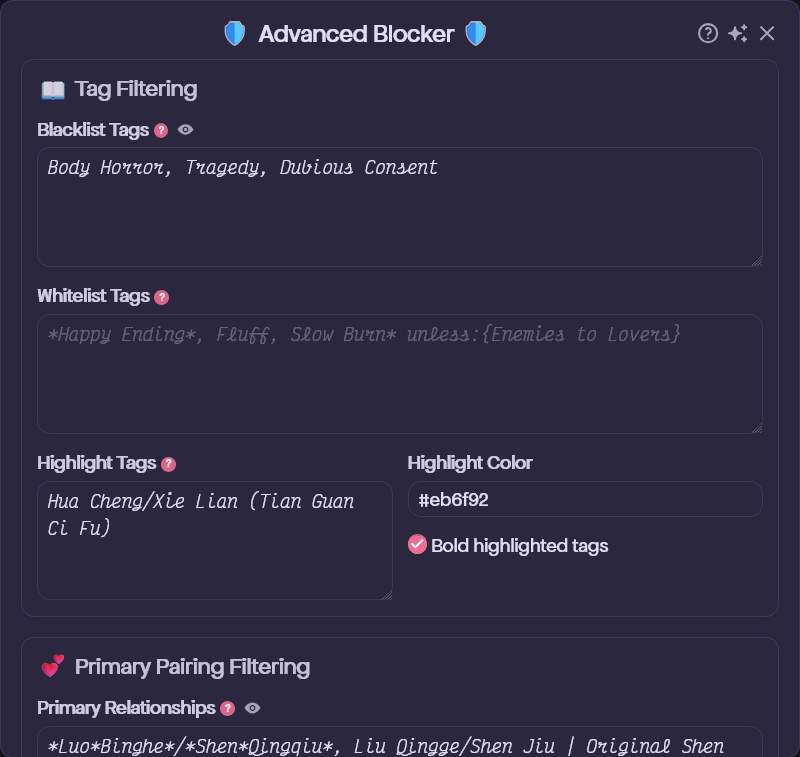
  • Blacklist Tags – Hide works containing specific tags (ratings, warnings, fandoms, ships, characters, freeforms, and more).
  • Strict Blacklist Tags – Hide works completely, with no clickable placeholder—for your absolute deal-breakers. (Requires Strict Tag Blocking to be enabled.)
  • Whitelist Tags – Always show a work, even if it matches the blacklist.
  • Highlight Tags – Make works with chosen tags stand out in a custom color, optionally with bold tags.
  • Wildcard Support – Use * to match partial tags. For example, Abandoned* matches "Abandoned Work" and "Abandoned WIP."
  • Conditional Blocking – Block tags based on the presence or absence of other tags:
    • unless:{tag} – Block unless the condition tag is present. Example: F/M unless:{Multi} blocks F/M works that aren't also tagged Multi.
    • with:{tag} – Block only if the condition tag is present. Example: Major Character Death with:{Unhappy Ending} blocks Major Character Death only when Unhappy Ending is also tagged.
    • Multi-condition – Combine tags inside braces using , for AND or || for OR. Example: Angst unless:{Happy Ending, Fluff} blocks Angst unless both Happy Ending and Fluff are present.

Content Filtering

  • Author Blacklist – Block works by specific authors. Match the full pseud (not a fragment); capitalization doesn't matter.
  • Title Blacklist – Hide works whose titles contain specific words or phrases.
  • Summary Blacklist – Hide works whose summaries contain specific words or phrases.
  • Work Blacklist – Block individual works by ID. Alt + Click a work's title to add it automatically.
Work Metadata Filtering

  • Word Count Limits – Set minimum and maximum word counts.
  • Chapter Limits – Filter by chapter count (handy for hiding one-shots or avoiding epic-length works).
  • Language Filter – Show only works in your chosen languages.
  • Fandom Limit – Hide works tagged with more fandoms than your threshold (useful for blocking crossovers).
  • Staleness Filter – Hide ongoing works that haven't updated in X months.
  • Block Complete / Ongoing – Hide works based on their completion status.

Primary Pairing & Character Filtering

  • Primary Relationships – Show only works where one of your chosen relationships appears in the first few relationship tags.
  • Primary Characters – Show only works where one of your chosen characters appears in the first few character tags.
  • Tag Window – Set how many tags to check from the top for each filter (default: 1 for relationships, 5 for characters).

Display Options

  • Show / Hide Block Reasons – See exactly why a work was blocked, or just show "Hidden by filters."
  • Work Placeholders – Blocked works appear as clickable stubs you can reveal, or disappear entirely.
  • Per-Filter Hide Completely – Click the eye icon (👁️) next to any filter to hide its matches entirely, bypassing placeholders.
  • Disable on My Content – Skip blocking and filtering on your own profile pages entirely.

Convenience Features

  • Quick-Add – Hold a customizable key (default: Alt) and click any tag, author name, or work title to add it to your blacklist instantly. With Strict Tag Blocking enabled, hold Shift + Alt to add to the strict blacklist instead.
  • Pause Blocking – Temporarily disable all filtering without changing your settings.
  • Import / Export Settings – Save and restore your configuration across devices or browsers.

Advanced Blocker settings panel


📋 How to Use

⚠️ Important for Chromium-based browsers: On Chrome, Brave, Vivaldi, or Microsoft Edge (PC), an extra activation step is required. Follow these instructions. For the Tampermonkey iOS app, see this video.

  1. Install a userscript manager such as Tampermonkey:
  2. Open any AO3 works page (search results, tag pages, profiles, bookmarks, and so on).
  3. Click UserscriptsAdvanced Blocker to open the settings panel.
  4. Configure your filters and click Save.

💾 Backup Your Settings

  • Export Settings – Download your configuration as a timestamped JSON file for backup or transfer.
  • Import Settings – Upload a previously exported JSON file to restore your customizations.
  • Reset to Defaults – Restore all settings to their original values.

💡 Tip — Sync your blocklist across devices: If you use AO3 on more than one device, AO3: Script Sync keeps your Advanced Blocker settings and blocklists in sync automatically using Google Sheets.


⚙️ Settings Guide

Wildcard Syntax

  • Use * to match any sequence of characters (zero or more) in tag, title, and summary blacklists.
  • The * acts as a placeholder—it can match letters, spaces, punctuation, or nothing at all.
  • Examples:
    • Abandoned* matches: Abandoned, Abandoned Work, Abandoned WIP
    • *Fix* matches: Fix-It, Fix-It of Sorts, Time Travel Fix-It
    • Self*Insert* matches: Self-Insert, Self-Insert Player, Self...Insert (with anything in between)
    • *Angst matches: Angst, Major Angst, Fluff and Angst

Conditional Blocking Syntax

  • Use Tag unless:{ConditionTag} or Tag with:{ConditionTag} to create smart filters.
  • Works in both the tag blacklist and the whitelist.
  • unless – Blocks when the condition tag is not present (blocks unless the condition exists).
  • with – Blocks when the condition tag is present (blocks only with the condition).
  • Wildcards are supported in both the main tag and the condition tag.
  • Multi-condition – Combine tags inside {} with AND (,) or OR (||) logic:
    • {Happy Ending, Fluff} – AND: all tags must match.
    • {Fluff||Hurt/Comfort} – OR: any tag must match.
  • Blacklist examples:
    • Angst unless:{*Fluff} – Blocks angsty works that don't have any kind of fluff.
    • F/M unless:{Multi||M/M||F/F} – Blocks F/M works that aren't also tagged Multi, M/M, or F/F.
    • *Whump with:{Hurt No Comfort} – Blocks any whump tag when Hurt No Comfort is present.
    • Major Character Death with:{Unhappy Ending} – Blocks Major Character Death only when it's also tagged Unhappy Ending.
    • Explicit with:{Dead Dove: Do Not Eat, Dubious Consent} – Blocks Explicit works only when they also have both Dead Dove: Do Not Eat and Dubious Consent.
    • Angst unless:{*Happy*Ending*} – Blocks Angst works unless they have a tag containing "Happy...Ending" (e.g., "Happy Ending," "Eventual Happy Ending").

Strict vs. Regular Tag Blocking

  • Blacklist Tags – Show a placeholder that can be clicked to reveal the blocked work (or use the eye toggle to hide it completely).
  • Strict Blacklist Tags – Always hide works completely, with no placeholder—keeping mild dislikes separate from absolute deal-breakers.
  • Example: blacklist "Angst" normally (you don't prefer it but will check occasionally) and strict-blacklist "Major Character Death" (you never want to see it).
  • Enable Strict Tag Blocking in Display Options to split your blacklist into these two categories.
  • Quick-add: Alt + Click adds to the regular blacklist; Shift + Alt + Click adds to the strict blacklist.

Hide Completely Toggles

  • Every filter has an eye icon (👁️) next to its input field. Click it to switch between showing a placeholder (which can be clicked to reveal the blocked work) and hiding the work completely. This gives you fine-grained control over how each type of block is displayed.

Primary Relationships & Characters

  • Enter names exactly as they appear on AO3, including alternative names: Luo Binghe/Shen Yuan | Shen Qingqiu.
  • The Tag Window settings check only the first X tags (default: 1 for relationships, 5 for characters).
  • Wildcards and limited conditional logic are supported. Use with:{Fandom} or with:{Fandom1||Fandom2} to limit a rule to specific fandoms.
  • Relationship examples:
    • Harry Potter/Tom Riddle with:{Harry Potter - J. K. Rowling} – Requires this ship within the tag window, but only blocks works in the Harry Potter fandom that lack it.
    • Harry Potter/* or */Harry Potter* – Allows Harry Potter to be shipped with anyone.
    • *Harry Potter* – Allows all relationship tags involving Harry Potter, including platonic ones (e.g., Harry Potter & Sirius Black).
  • Character examples:
    • Luo Binghe with:{人渣反派自救系统 - 墨香铜臭 | The Scum Villain's Self-Saving System - Mòxiāng Tóngxiù} – Requires Luo Binghe within the tag window, but only blocks works in the SVSSS fandom.
    • *Luo Binghe – Matches all versions of Luo Binghe, including Original Luo Binghe, Ancestor Luo Binghe, and so on.

Note — using AO3: Reorder Ship Tags? The Tag Window reads the original tag order set by the author, not the reordered version.

Language Filter

  • Enter language names exactly as they appear on AO3: English, Русский, 中文-普通话国语.

🙌 Credits

Big thanks to AO3 Blocker by Jaceboy and AO3 Savior by tuff.


📜 Check Out My Other Scripts