press the [Continue] button instead of 'Add message > type continue > Ctrl+Enter', configure panel optionally saves 'Temperature', 'Maximum Length' and 'Instructions'
OpenAI Playground (ChatGPT) - Continue Button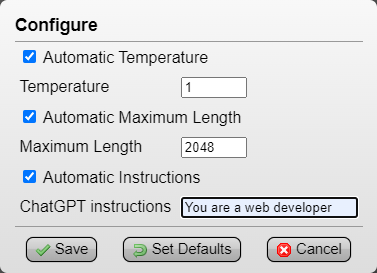
(Tampermonkey Menu > OpenAI Playground (ChatGPT) - Continue Button > Configure)
Automatic Temperature: set to '1', can be useful to save another Temperature (example, save as '0' for GPT output related to code script) (default: 1)
Automatic Maximum Length: set to '2048' (max), this way GPT will output text without needing to use 'Continue' nearly as much (default: 2048)
Automatic Instructions: optional, saves a prompt guide (example, 'You are a web developer') (default: empty)press the single [Continue] button instead of having to repeatedly click and type 'Add message > continue > Ctrl+Enter' to continue GPT's output

I also wanted to bring attention to this OpenAI ChatGPT and Playground Redesign RazorGlass userstyle I found, I think it makes Playground look much better:


