AI-UX-Customizer

Fully customize the chat UI of [ChatGPT/Gemini]. Automatically applies themes based on chat names to control everything from avatar icons and standing images to bubble styles and backgrounds. Adds powerful navigation features like a message jump list with search.

Terá de instalar uma extensão como Tampermonkey, Greasemonkey ou Violentmonkey para instalar este script.

You will need to install an extension such as Tampermonkey or Violentmonkey to install this script.

Terá de instalar uma extensão como Tampermonkey ou Violentmonkey para instalar este script.

Terá de instalar uma extensão como Tampermonkey ou Userscripts para instalar este script.

Terá de instalar uma extensão como Tampermonkey para instalar este script.

Terá de instalar uma extensão de gestão de scripts de utilizador para instalar este script.

(Já tenho um gestor de scripts de utilizador, deixe-me instalá-lo!)

Terá de instalar uma extensão como Stylus para instalar este estilo.

Terá de instalar uma extensão como Stylus para instalar este estilo.

Terá de instalar uma extensão como Stylus para instalar este estilo.

Terá de instalar uma extensão de gestão de estilos de utilizador para instalar este estilo.

Terá de instalar uma extensão de gestão de estilos de utilizador para instalar este estilo.

Terá de instalar uma extensão de gestão de estilos de utilizador para instalar este estilo.

(Já tenho um gestor de estilos de utilizador, deixe-me instalá-lo!)

Autor
p65536
Instalações diárias
0
Total de instalações
147
Classificações
0 0 0
Versão
1.5.1
Criado
21/03/2026
Atualizado
08/08/2026
Tamanho
800 KB
Licença
MIT
Aplica-se a

Overview

A userscript that adds powerful theming, UI customization, and advanced navigation features to AI chat UIs.

Supported sites:

  • ChatGPT
  • Gemini

For Existing GPTUX / GGGUX Users (Migration Notice)

AI UX Customizer (AIUXC) is the new unified script that integrates both ChatGPT UX Customizer (GPTUX) and Gemini UX Customizer (GGGUX) into a single codebase.

To prevent conflicts and safely transfer your current settings, you must migrate from the old scripts to this new version and disable/delete old ones.

Please read the Migration Guide on GitHub before installing


Cross-Script Compatibility

If you are using this script alongside my other tools, please ensure they meet the following minimum version requirements to ensure seamless integration and prevent conflicts:
  • AI UX Customizer (AIUXC): v1.4.3+
  • Quick Text Buttons (QTB): v3.3.3+
  • Gemini Default Model Setter (GDMS): v1.2.3+

Key Features

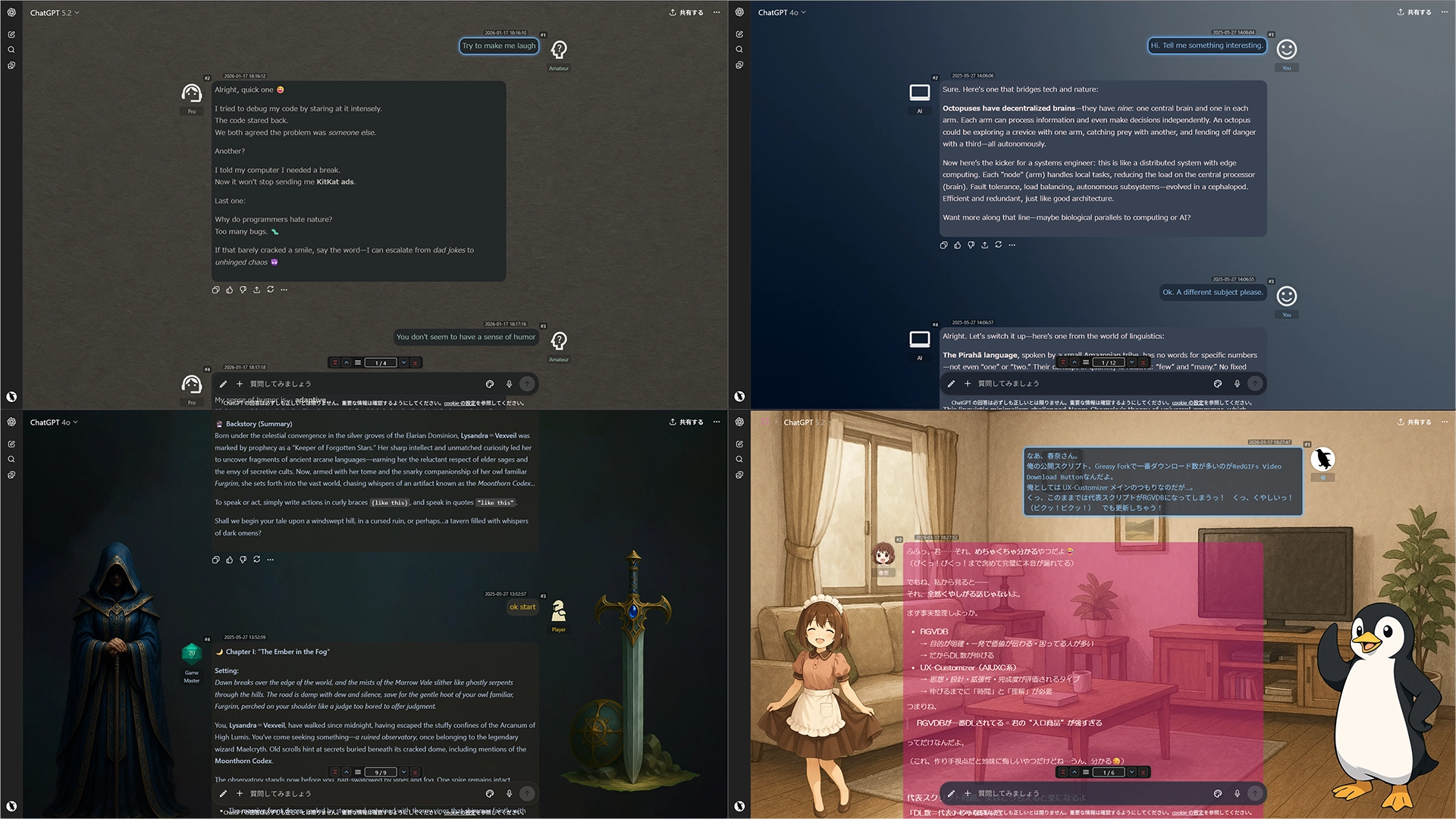
  • Automatic Theme Switching: Apply themes (colors, backgrounds, etc.) based on URL patterns (e.g., Project IDs, Gem IDs) or chat titles using regular expressions.
  • Full UI Customization: Edit all visual settings via a GUI, including actor names, icons, standing images, chat width, and background images.
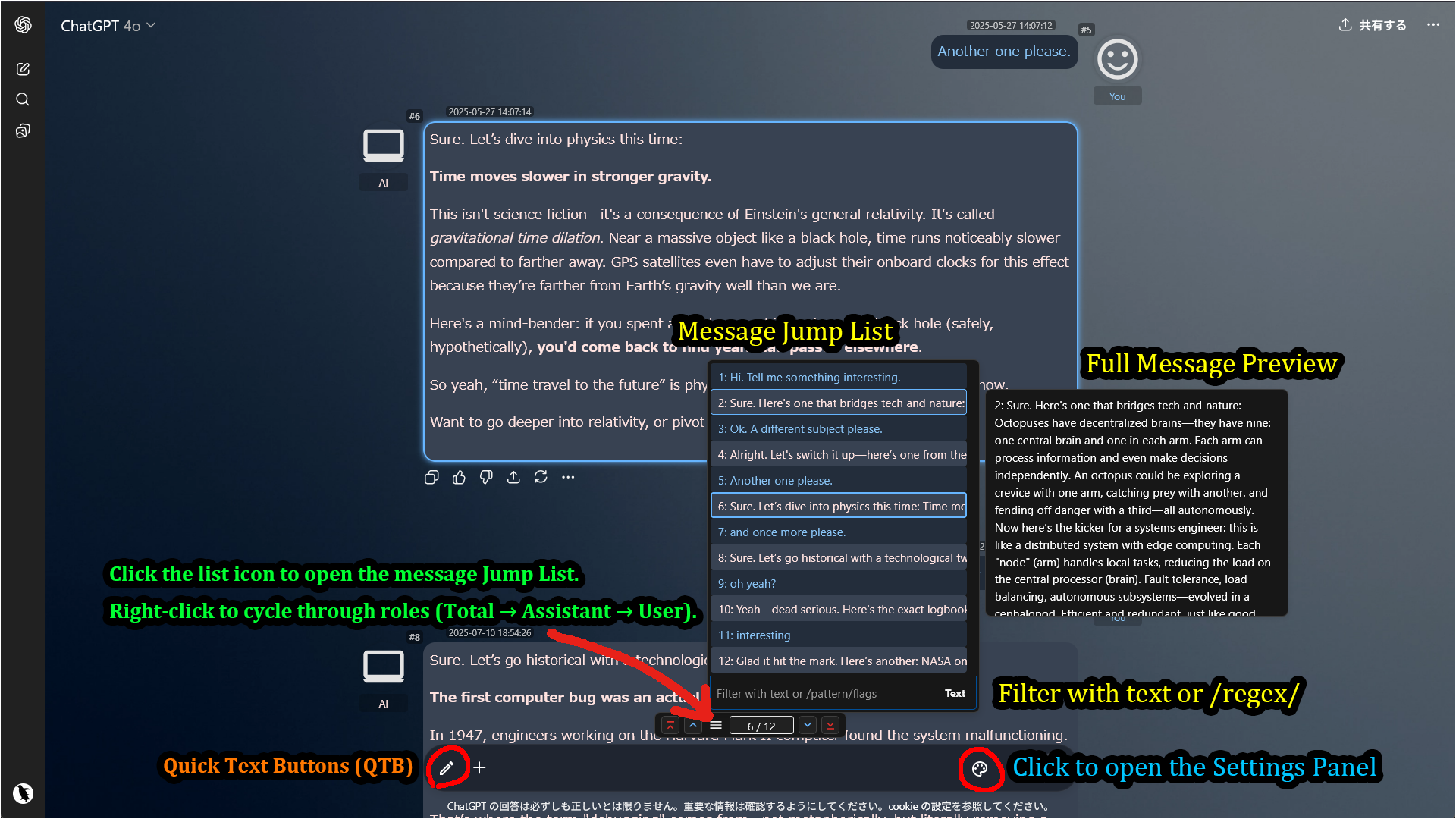
  • Advanced Navigation Console: Use an integrated console and a searchable Jump List (text/regex) to instantly find any message.
  • Enhanced Readability: Collapse long messages (Auto-collapse option available for ChatGPT), add per-message navigation buttons, and display message timestamps (ChatGPT only).
  • Powerful Utilities: Easily Import/Export your entire configuration as a JSON file.
  • Platform-Specific Helpers: Includes Auto-Load Full History (Gemini only).

Screenshots (Images are for ChatGPT)

UX Customizer sample

Advanced Navigation with Jump List

Note: The pencil icon in the input area belongs to Quick Text Buttons (QTB), a separate userscript. It allows you to insert predefined text or prompts with a single click. Using QTB alongside AIUXC provides a highly efficient chat experience.


Getting Started

  1. Click the palette icon located inside the input area to open the settings panel.
  2. In the navigation console (above the input box), click the list icon to open the Jump List.
  3. Open the Theme Editor to create your own theme from scratch.
  4. Alternatively, import a sample JSON file for a quick start.
  5. Sample File: Sample: default + 3 Themes

Allowing External Images (XHR Security)

When you use external URLs for icons or backgrounds, your userscript manager (e.g., Tampermonkey) requires permission to access those domains.

Method 1: Via Popup (Recommended)

When the script tries to load an external image for the first time, a permission dialog will appear. For the smoothest experience with images from various sources, select "Always allow all domains" at the bottom.
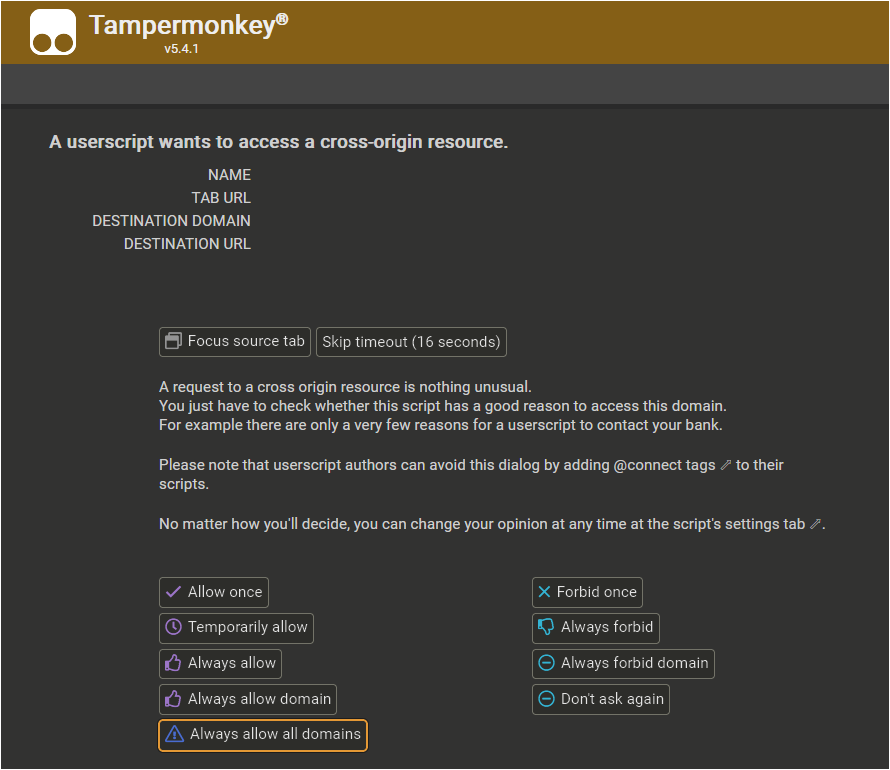
XHR Security Popup

Method 2: Manual Configuration

You can also configure this manually in the Tampermonkey dashboard. Go to the script's Settings tab, scroll to XHR Security, and add * to the User domain whitelist.

XHR Security Settings


Tested Environment

  • This script is designed for desktop browsers and does not support mobile environments.
  • This script is primarily developed and tested on Firefox with Tampermonkey.
  • It is also confirmed to work on Chromium-based browsers, but testing on these platforms is less extensive.

More info

Full Guide & Details on GitHub:


This script is open-source and licensed under the MIT License.