Overview
A userscript that adds powerful theming, UI customization, and advanced navigation features to AI chat UIs.
There are ChatGPT and Gemini versions.
Recommended Companion:
Pair this with Quick Text Buttons (QTB) for one-click text insertion.
UX-Customizer optimizes the UI, while QTB optimizes Input—together, they provide the ultimate chat experience.
Key Features
- Automatic Theme Switching: Apply themes (colors, backgrounds, etc.) based on chat titles, project names (ChatGPT) or Custom GPT names (ChatGPT), using regular expressions.
- Full UI Customization: Edit all visual settings via a GUI, including actor names, icons, standing images, chat width, and background images.
- Advanced Navigation Console: Use an integrated console and a searchable Jump List (text/regex) to instantly find any message.
- Enhanced Readability: Collapse long messages, add per-message navigation buttons, and display message timestamps (ChatGPT only).
- Powerful Utilities: Easily Import/Export your entire configuration as a JSON file.
- Platform-Specific Helpers: Includes Auto-Load Full History (Gemini only) and Layout Scan (ChatGPT only, a fix for scrolling layout shifts on Firefox).
New Features
- (2025/11/16) Message Timestamp (ChatGPT only): Displays the creation time for each message. This feature intercepts API requests to load historical timestamps and records new ones in real-time.
- (2025/11/09) Layout Scan (ChatGPT and Firefox Only): Automatically performs a layout scan on chat load to mitigate scroll position jumps from late-loading messages or images.
- (2025/09/08) Jump List: Added an advanced message jump list with search/filter capabilities and a full preview on hover. Access it by clicking the labels in the navigation console.
- (2025/09/05) Auto-load full chat history (Gemini only): Automatically loads the entire chat history when opening a chat, eliminating the need to manually scroll up multiple times.
Screenshots (Images are for ChatGPT)
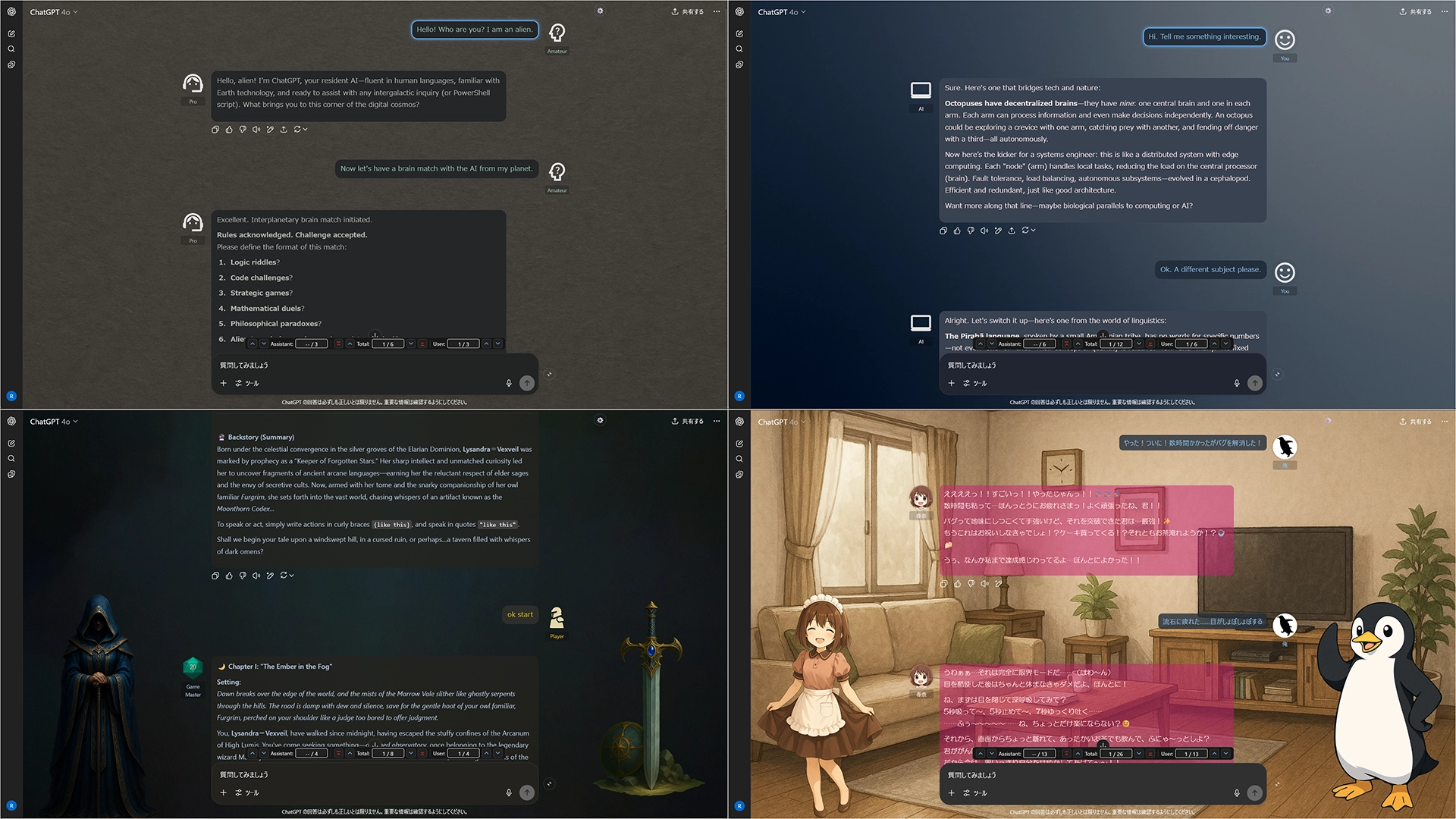
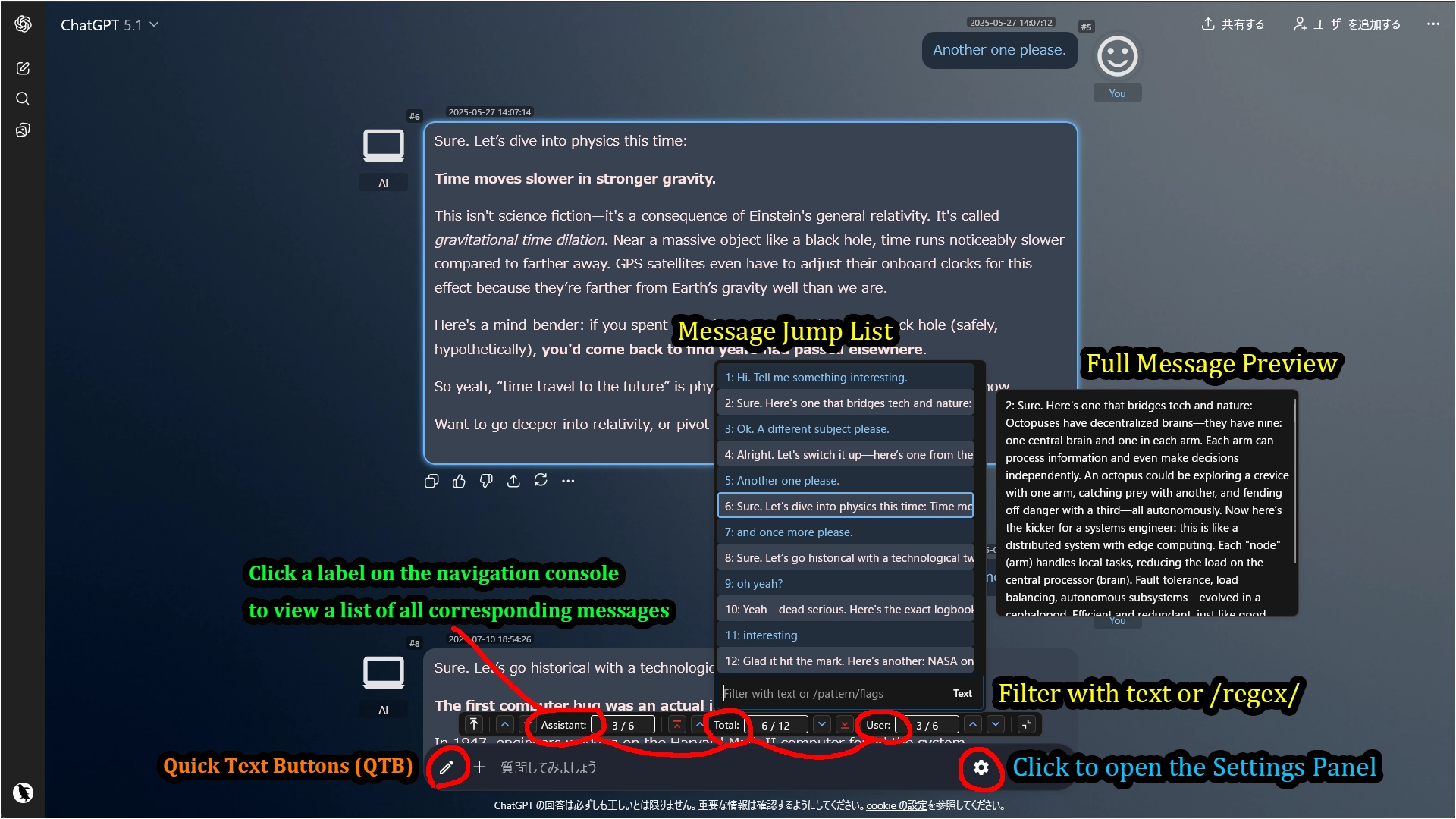
Note: The pencil icon in the input area belongs to Quick Text Buttons (QTB), a separate userscript. It allows you to insert predefined text or prompts with a single click. Using QTB alongside UX Customizer provides a highly efficient chat experience.
Getting Started
- Click the gear icon ⚙️ in the input area to open the settings panel.
- In the navigation console (above the input box), click the "Assistant:", "Total:", or "User:" labels to open the Jump List.
- Open the Theme Editor to create your own theme from scratch.
- Alternatively, import a sample JSON file for a quick start.
- Sample File: Sample: default + 3 Themes
Allowing External Images (XHR Security)
When you use external URLs for icons or backgrounds, your userscript manager (e.g., Tampermonkey) requires permission to access those domains.
Method 1: Via Popup (Recommended)
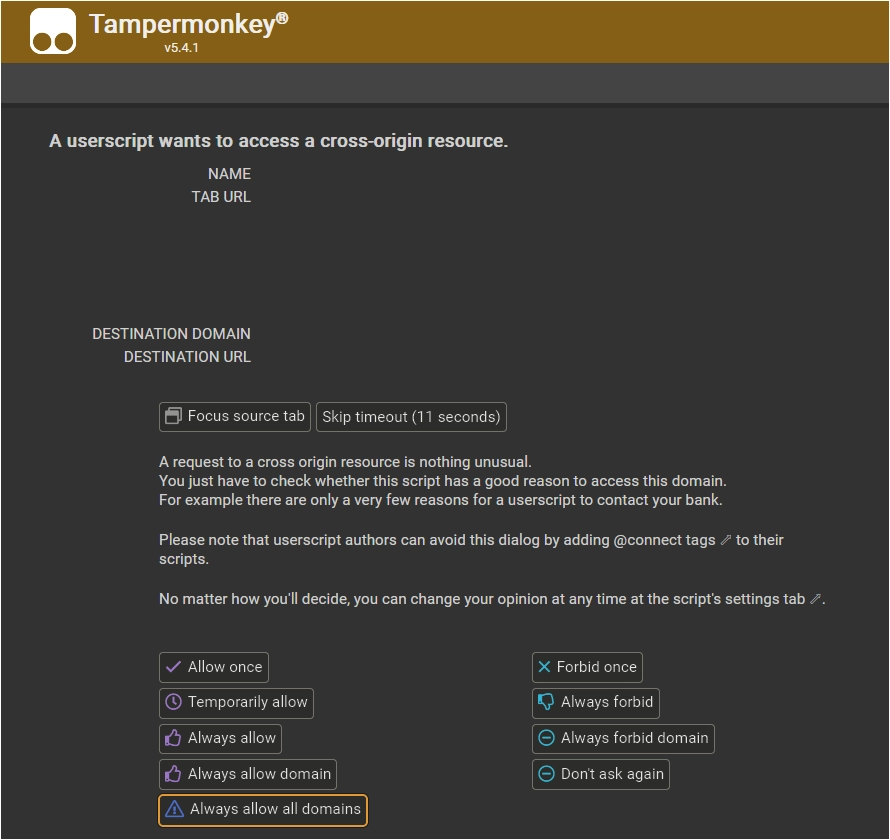
When the script tries to load an external image for the first time, a permission dialog will appear.
For the smoothest experience with images from various sources, select "Always allow all domains" at the bottom.
Method 2: Manual Configuration
You can also configure this manually in the Tampermonkey dashboard.
Go to the script's Settings tab, scroll to XHR Security, and add * to the User domain whitelist.

Tested Environment
- This script is designed for desktop browsers and does not support mobile environments.
- This script is primarily developed and tested on Firefox with Tampermonkey.
- It is also confirmed to work on Chromium-based browsers, but testing on these platforms is less extensive.
More info
Full Guide & Details on GitHub:
This script is open-source and licensed under the MIT License.
