Playbook Analytics

Track your Google Play Books reading sessions and visualize progress, pace, and ETA with interactive charts.

θα χρειαστεί να εγκαταστήσετε μια επέκταση όπως το Tampermonkey, το Greasemonkey ή το Violentmonkey για να εγκαταστήσετε αυτόν τον κώδικα.

You will need to install an extension such as Tampermonkey to install this script.

θα χρειαστεί να εγκαταστήσετε μια επέκταση όπως το Tampermonkey ή το Violentmonkey για να εγκαταστήσετε αυτόν τον κώδικα.

θα χρειαστεί να εγκαταστήσετε μια επέκταση όπως το Tampermonkey ή το Userscripts για να εγκαταστήσετε αυτόν τον κώδικα.

You will need to install an extension such as Tampermonkey to install this script.

Θα χρειαστεί να εγκαταστήσετε μια επέκταση διαχείρισης κώδικα χρήστη για να εγκαταστήσετε αυτόν τον κώδικα.

(Έχω ήδη έναν διαχειριστή κώδικα χρήστη, επιτρέψτε μου να τον εγκαταστήσω!)

You will need to install an extension such as Stylus to install this style.

You will need to install an extension such as Stylus to install this style.

You will need to install an extension such as Stylus to install this style.

You will need to install a user style manager extension to install this style.

You will need to install a user style manager extension to install this style.

You will need to install a user style manager extension to install this style.

(Έχω ήδη έναν διαχειριστή στυλ χρήστη, επιτρέψτε μου να τον εγκαταστήσω!)

Δημιουργός
Brandon Hall
Ημερήσιες εγκαταστάσεις
0
Σύνολο εγκαταστάσεων
0
Βαθμολογίες
0 0 0
Έκδοση
1.0.0
Δημιουργήθηκε την
25/04/2026
Ενημερώθηκε την
25/04/2026
Μέγεθος
30 KB
Άδεια
MIT
Εφαρμόζεται σε

Playbook Analytics

Track your Google Play Books reading sessions and visualize progress, pace, and ETA — all in your browser.


License: MIT Install

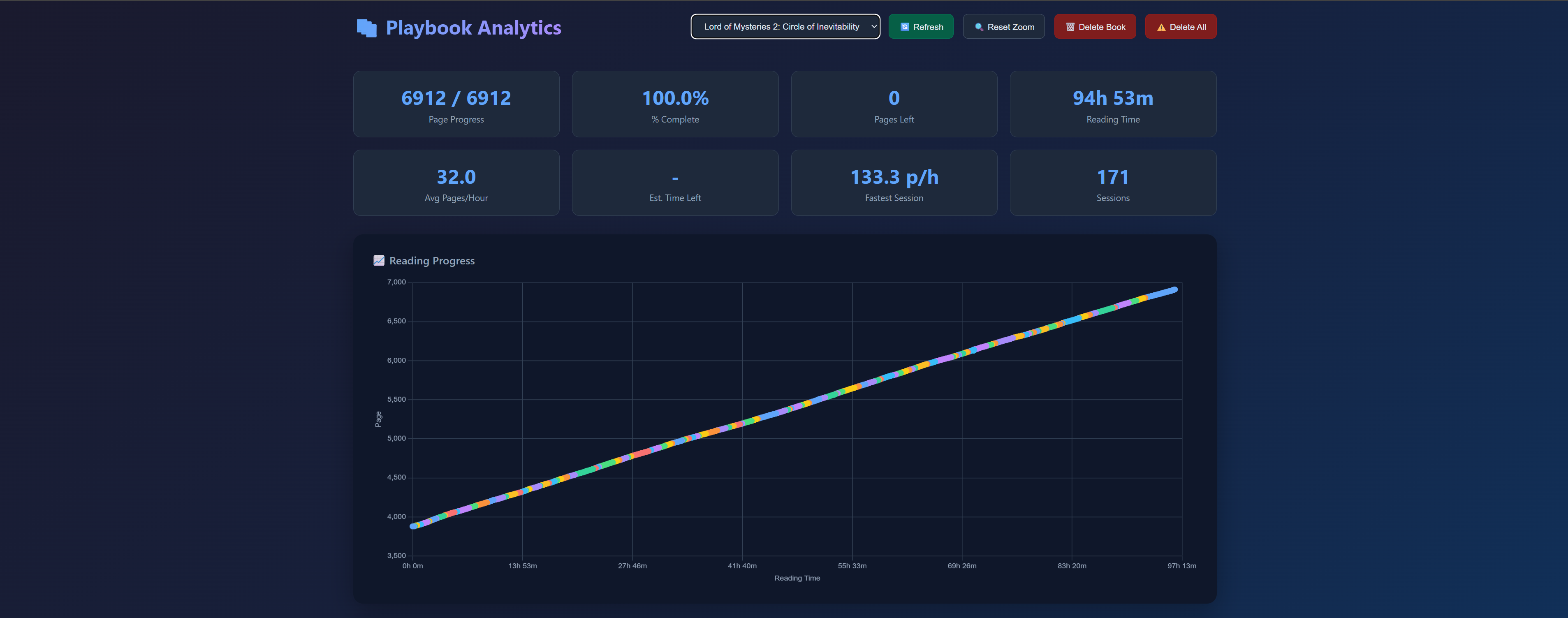
Playbook Analytics dashboard

What it does

Google Play Books shows you what page you're on. That's it. It doesn't tell you how fast you read, how long you spent in a book, when you'll finish, or how your reading volume looks day by day.

Playbook Analytics tracks every page change in the Play Books web reader and turns it into a per-book dashboard with the numbers that actually matter — pages per hour, time to finish, fastest session, daily reading volume, and a zoomable chart of every reading session.

Features

  • Automatic tracking. Every page change in the Play Books web reader is recorded as you read. No setup, no clicks.
  • Per-book stats. Page progress, % complete, pages remaining, total reading time, average pages/hour, fastest session, ETA to finish, and session count — for each book.
  • Session detection. Continuous reading is grouped into sessions automatically (5-minute idle gap = new session).
  • Reading-progress chart. Zoomable, pannable line chart of pages over reading time, color-coded per session. Hover any point for a tooltip with the exact time, % complete, time spent on that page, and the session's pace.
  • Daily-pages bar chart. See your daily reading volume at a glance, with empty days shown so streaks (and lapses) are visible.
  • Auto page-count detection. The script reads the total page count from Play Books' UI (and from the rendering iframe as a fallback).
  • Local-only. All data lives in your userscript manager's storage. Nothing is ever uploaded.

Privacy

All your reading data stays on your machine. It's stored via your userscript manager's built-in storage (GM_setValue) and is never transmitted, uploaded, or shared with any server. There are no analytics, no telemetry, no accounts, and no tracking pixels.

Installation

  1. Install a userscript manager — Tampermonkey (recommended), Violentmonkey, or Greasemonkey.
  2. Install Playbook Analytics.
  3. Open any book in the Play Books web reader. Tracking starts immediately.

Usage

Reading

Just read. The script records each page change in the background. On each new book, it also auto-detects the total page count from the reader UI.

Opening the dashboard

Click your userscript manager's toolbar icon while a Play Books reader tab is active. Under Playbook Analytics, choose 📊 Open Playbook Analytics. The dashboard opens in a new tab.

The dashboard URL (https://example.com/playlytics) is a placeholder — the userscript intercepts the page before it loads anything from example.com and renders its own UI in its place. No data leaves your machine.

The dashboard

Stats and reading progress chart

The top of the dashboard shows eight stat cards for the currently selected book:

Stat Meaning
Page Progress Current page / total pages
% Complete How far through the book you are
Pages Left Pages remaining until the end
Reading Time Total time spent actively reading
Avg Pages/Hour Lifetime average reading speed for this book
Est. Time Left ETA to finish, based on your average pace
Fastest Session Your single fastest session's pace
Sessions Number of distinct reading sessions

Below them, the Reading Progress chart plots page number against active reading time, with each session in its own color and a small visual gap between sessions. Scroll to zoom, drag to pan, and hover any point for a tooltip showing the exact time, your % complete, how long you spent on that page, and the session's pace.
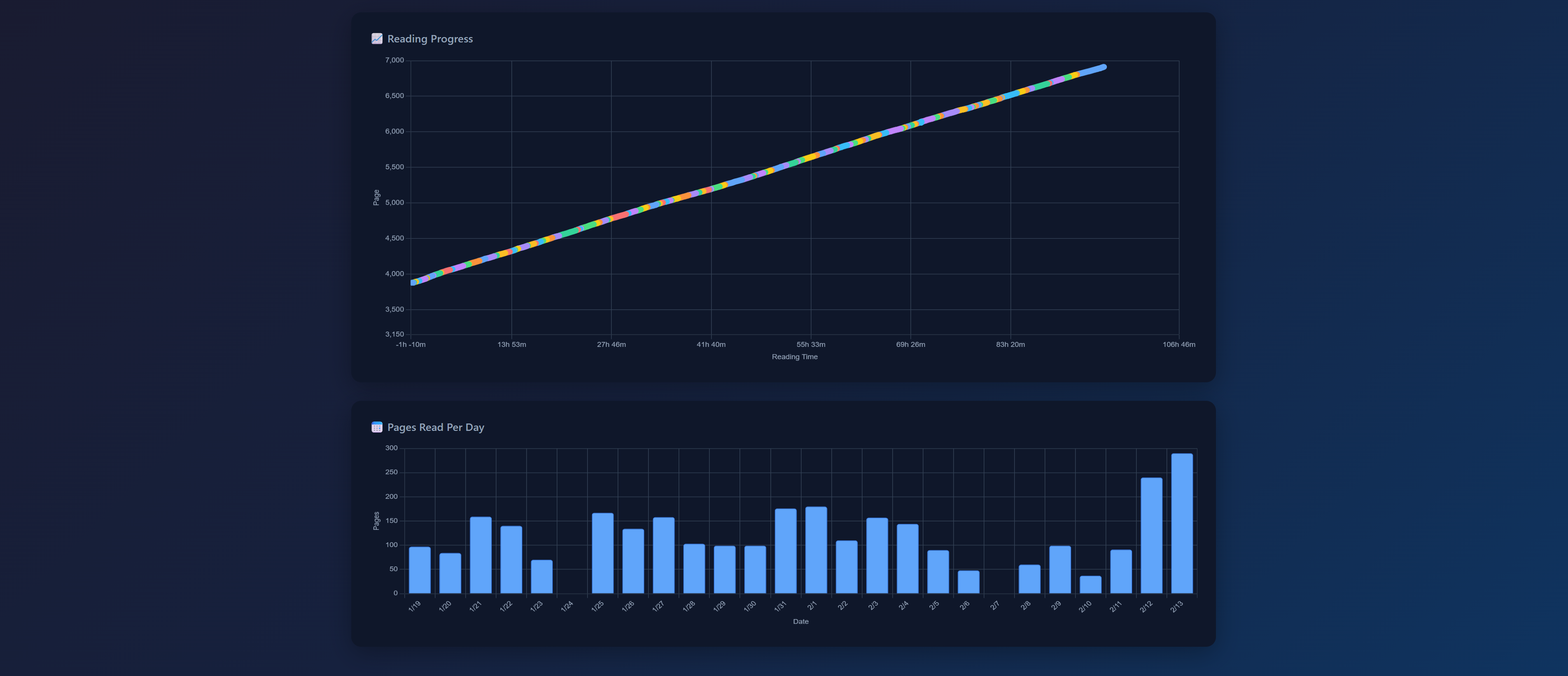
Reading progress and pages per day charts

Underneath, the Pages Read Per Day chart shows your daily reading volume. Empty days are still drawn (in gray) so streaks and breaks are easy to see.

Controls

Button What it does
Book selector Switch between any tracked book
🔄 Refresh Reload data from storage (picks up new books and new pages without a full page reload)
🔍 Reset Zoom Reset the reading-progress chart back to its full view
🗑️ Delete Book Permanently delete data for the currently selected book
⚠️ Delete All Permanently delete data for all books

Userscript menu commands

While a Play Books reader tab is active, your userscript manager's menu (under Playbook Analytics) gives you three commands:

  • 📊 Open Playbook Analytics — open the dashboard in a new tab.
  • 🗑️ Delete Current Book Data — wipe data for the book currently open.
  • ⚠️ Delete All Reading Data — wipe everything for every book.

How tracking works

  • A page is recorded the instant you turn it (the script hooks Play Books' SPA navigation events). Sitting on a page costs nothing.
  • A reading session is a contiguous run of page changes with no gap longer than 5 minutes. Long pauses split your reading into separate sessions automatically.
  • "Reading time" only counts time inside sessions. Going to make coffee for half an hour doesn't inflate your numbers.
  • Books are keyed by their title in Play Books. If a book's title changes, its data won't follow — open an issue if this happens to you.

Notes

  • Works on the Play Books web reader (play.google.com/books/reader). It does not work in the Android or iOS apps.
  • Tested with Tampermonkey. Should work in Violentmonkey and Greasemonkey too — open an issue if it doesn't.
  • Data is stored per browser profile. If you read in multiple browsers or profiles, each one tracks separately.

License

MIT © Brandon Hall