OpenAI Playground (ChatGPT) - Continue Button
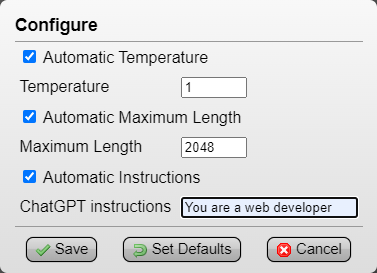
press the [Continue] button instead of 'Add message > type continue > Ctrl+Enter', configure panel optionally saves 'Temperature', 'Maximum Length' and 'Instructions'

Du musst eine Erweiterung wie Tampermonkey, Greasemonkey oder Violentmonkey installieren, um dieses Skript zu installieren.

You will need to install an extension such as Tampermonkey to install this script.

You will need to install an extension such as Tampermonkey or Violentmonkey to install this script.

You will need to install an extension such as Tampermonkey or Userscripts to install this script.

You will need to install an extension such as Tampermonkey to install this script.

Sie müssten eine Skript Manager Erweiterung installieren damit sie dieses Skript installieren können

(Ich habe schon ein Skript Manager, Lass mich es installieren!)

You will need to install an extension such as Stylus to install this style.

You will need to install an extension such as Stylus to install this style.

You will need to install an extension such as Stylus to install this style.

You will need to install a user style manager extension to install this style.

You will need to install a user style manager extension to install this style.

You will need to install a user style manager extension to install this style.

(I already have a user style manager, let me install it!)

Autor
drhouse
Installationen heute
0
Installationen gesamt
118
Bewertungen
0 0 0
Version
3.0
Erstellt am
05.05.2023
Letzte Aktualisierung
09.09.2023
Größe
4,88 KB
Lizenz
CC-BY-NC-SA-4.0
Wird angewandt auf

OpenAI Playground (ChatGPT) - Continue Button


(Tampermonkey Menu > OpenAI Playground (ChatGPT) - Continue Button > Configure)
Automatic Temperature: set to '1', can be useful to save another Temperature (example, save as '0' for GPT output related to code script) (default: 1)
Automatic Maximum Length: set to '2048' (max), this way GPT will output text without needing to use 'Continue' nearly as much (default: 2048)
Automatic Instructions: optional, saves a prompt guide (example, 'You are a web developer') (default: empty)


press the single [Continue] button instead of having to repeatedly click and type 'Add message > continue > Ctrl+Enter' to continue GPT's output


I also wanted to bring attention to this OpenAI ChatGPT and Playground Redesign RazorGlass userstyle I found, I think it makes Playground look much better: