Greasy Fork is available in English.

Global Video Filter Overlay

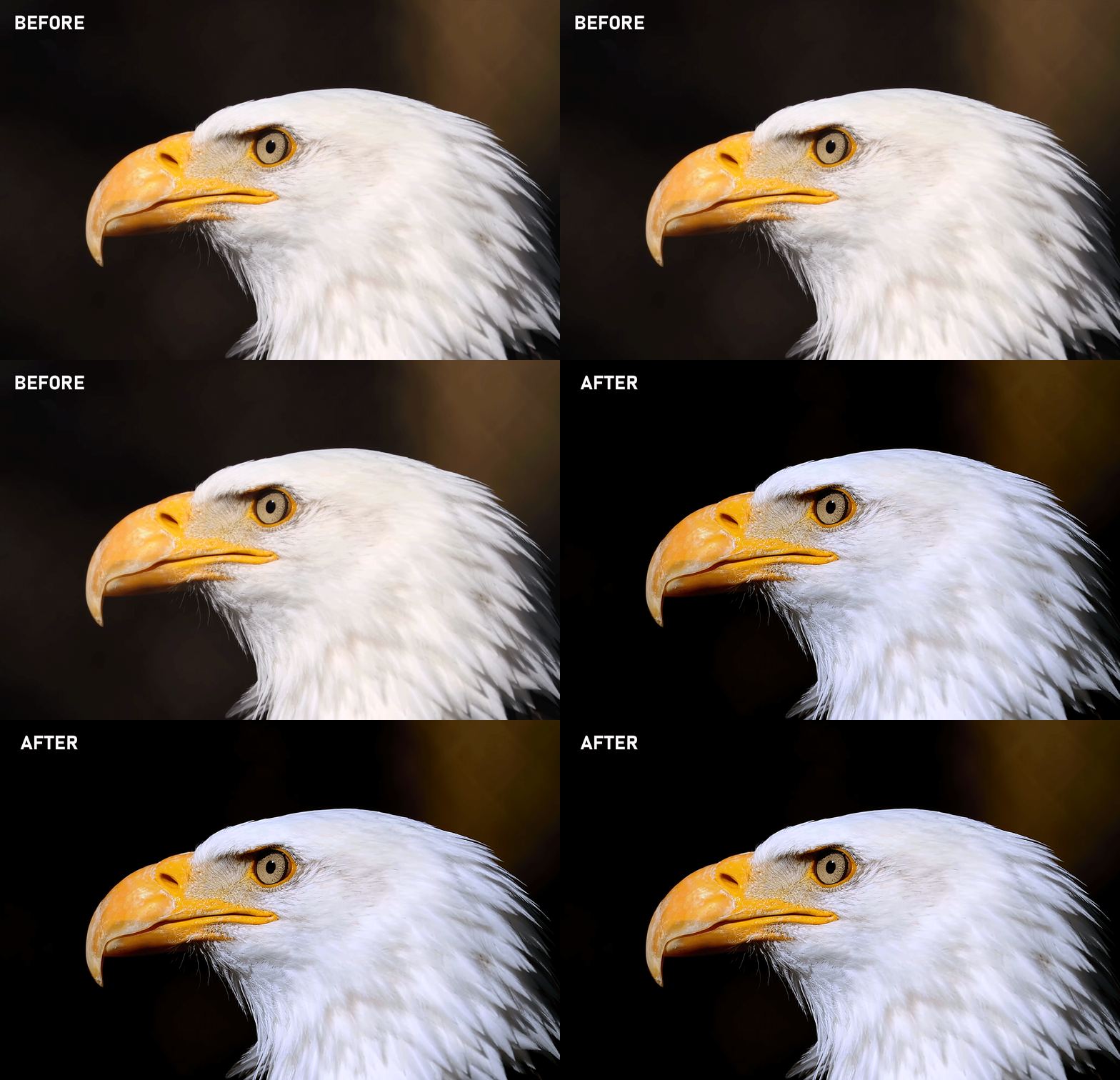
Global Video Filter Overlay enhances any HTML5 video in your browser with real-time color grading, sharpening, HDR and LUTs. It provides instant profile switching and on-video controls to improve visual quality without re-encoding or downloads.
K instalaci tototo skriptu si budete muset nainstalovat rozšíření jako Tampermonkey, Greasemonkey nebo Violentmonkey.

You will need to install an extension such as Tampermonkey to install this script.

K instalaci tohoto skriptu si budete muset nainstalovat rozšíření jako Tampermonkey nebo Violentmonkey.

K instalaci tohoto skriptu si budete muset nainstalovat rozšíření jako Tampermonkey nebo Userscripts.

You will need to install an extension such as Tampermonkey to install this script.

K instalaci tohoto skriptu si budete muset nainstalovat manažer uživatelských skriptů.

(Už mám manažer uživatelských skriptů, nechte mě ho nainstalovat!)

You will need to install an extension such as Stylus to install this style.

You will need to install an extension such as Stylus to install this style.

You will need to install an extension such as Stylus to install this style.

You will need to install a user style manager extension to install this style.

You will need to install a user style manager extension to install this style.

You will need to install a user style manager extension to install this style.

(Už mám manažer uživatelských stylů, nechte mě ho nainstalovat!)

Autor
Freak288
Denně instalací
1
Celkem instalací
95
Hodnocení
0 0 0
Verze
1.8.6
Vytvořeno
03. 01. 2026
Aktualizováno
19. 03. 2026
Size
445,4 KB
Licence
neuvedeno
Spustit na
všech stránkách


What this script does


This userscript adds a global video filter pipeline to all HTML5 "video" elements on any website you visit.
It applies visual enhancements like sharpen/blur, black & white level tuning, optional cinematic color looks, and an adjustable grain reduction / texture control.

It also renders a small on-video overlay UI (icons + sliders). The slider values are stored globally via Tampermonkey storage, so the same settings are used across all sites, all players, and all tabs.


Key features


  • Works on any site with HTML5 videos (streaming sites, embedded players, etc.)
  • Per-video overlay UI positioned on the video (top-right)
  • Global persistent settings (one set of values shared everywhere)
  • Sharpen OR Blur using one slider (negative = blur, positive = sharpen)
  • Black Level (BL) lift/crush blacks (snap-to-zero)
  • White Level (WL) highlight “knee” tuning to push/pull bright areas (snap-to-zero)
  • DN (DeNoise / Texture)
    • Positive values: grain reduction / smoothing
    • Negative values: texture boost (adds micro-contrast detail)
  • HDR (SDR→HDR look):
    • Increases local contrast, punch, and highlight shaping
  • Optional cinematic looks:
    • Dark & Moody
    • Teal & Orange
    • Vibrant & Saturated
  • Color Grading Profile
    • Green = Movie, Blue = Anime, Red = Gaming, Yellow = EyeCare, White = User
  • Grading Settings (G)
    • Make your own Settings for User Profile
  • Auto-Scene-Match
    • The script continuously samples frames and gently auto-adjusts brightness/contrast/saturation/hue-rotate to keep exposure, contrast, saturation and color cast more stable/neutral

    Keyboard shortcuts (toggle on/off)

    All shortcuts use: CTRL + ALT + key
    • CTRL + ALT + B → Toggle Base Tone Chain (brightness/contrast/saturation layer)
    • CTRL + ALT + D → Toggle Dark & Moody
    • CTRL + ALT + O → Toggle Teal & Orange
    • CTRL + ALT + V → Toggle Vibrant & Saturated
    • CTRL + ALT + P → Toggle HDR
    • CTRL + ALT + C → Profile Cycle (Color Grading)
    • CTRL + ALT + G → Show/Hide Grading Settings (For User Profile) + Assistive-Recoloring Filters (Experimental) + LUT Profiles
    • CTRL + ALT + A → Toggle Auto-Scene-Match
    • CTRL + ALT + I → Show/Hide Export/Import JSON (Screenshot & Recording) + Debug ON/OFF
    • CTRL + ALT + S → Show/Hide Scopes HUD
    • CTRL + ALT + X → Toggle GPU Pipeline Mode
    • CTRL + ALT + H → Show/Hide the overlay UI (icons + sliders)
    • Shift + Q → Switch profiles from Config menu

    • Notes:
      • The overlay is hidden by default. Press CTRL+ALT+H to display it.
      • The icons B/D/O/V reflect which modes are currently enabled.

      Sliders (all global + persistent)

      All slider values are saved automatically and reused everywhere.
      All sliders support Snap-to-0 around the center, so you can easily return to neutral.
      SL — Sharpen/Blur Level (-2.0 … +2.0, step 0.1)
      • < 0 = Blur
      • > 0 = Sharpen
      SR — Radius (-2.0 … +2.0, step 0.1)
      • Controls how “wide” the sharpen/blur effect is
      • Higher = stronger radius / softer influence
      BL — Black Level (-2.0 … +2.0, step 0.1)
      • Positive lifts blacks (brighter shadows)
      • Negative crushes blacks (deeper shadows)
      WL — White Level (-2.0 … +2.0, step 0.1)
      • Positive pushes highlights brighter
      • Negative compresses highlights (more headroom, less clipping)
      DN — DeNoise / Texture (-1.5 … +1.5, step 0.1)
      • Positive = grain reduction / smoothing
      • Negative = texture boost (micro-contrast sharpening)
      HDR — HDR on/off (-1.0 … +2.0, step 0.1) Default: +0.3
      • Positive = add punch, clarity, deeper highlights, and richer colors
      • Negative = soften the image, reducing contrast for a smoother look
      • HDR completely reworked: Proper ACES tonemapping in linear color space
      • Significantly more natural highlights and richer colors
      • Smarter HDR control (up to +1.5 stops exposure)


      Profile Cycle


      Off
      No profile filtering active. Only manual settings (Base, Dark&Moody, Teal&Orange, Vibrant, HDR, RGB Gain) are applied.

      Movie
      Cinematic look with warm color grading and softer contrast. Optimized for movies and series with natural skin tone reproduction.

      Anime
      Vibrant, colorful look specifically for anime and animations. Enhances typical anime colors and provides clearer lines.

      Gaming
      High-contrast, intense look for games. Improves visibility in dark areas and enhances colors for a more immersive gaming experience.

      EyeCare
      Reduces blue light by 50% for more comfortable viewing during long sessions, especially in the evening. Warmer color temperature similar to night mode features.

      User
      Your own manual settings. All your personal adjustments from the Grading HUD (contrast, black level, white level, RGB gain, etc.) take effect here.

      Auto-Scene-Match


      An intelligent automatic image optimization that adapts to your video content in real-time.

      How it works:
      The function continuously analyzes the playing video image and calculates optimal values for brightness, contrast, saturation, and color cast. These values are smoothly and fluidly adjusted to the current scene.

      What is automatically controlled:
      • Brightness – Adjusts overall brightness to an optimal level
      • Contrast – Optimizes dynamic range for more depth in the image
      • Saturation – Brings out colors naturally without oversaturation
      • Color Cast – Automatically corrects color tints (optional feature)


      Special features:
      • Responds to scene changes with faster adaptation
      • Takes motion into account for more stable analysis
      • Adaptive algorithm glides smoothly between values (no hard switching)
      • Cannot analyze DRM-protected videos (uses last good values)


      Visual feedback:
      A small dot in the video shows the status(If debug=true Default: false):

      🟢 Green = Active, no changes
      🟢 Light Green = Active and currently adjusting
      🔴 Red = No updates (e.g., with DRM)


      Goal:
      Always optimally looking videos without manual intervention – especially useful for changing scenes or different video sources.

      Scopes HUD


      A professional analysis tool directly in the video that helps you make precise color corrections.

      Luma Histogram (Y)
      Displays the brightness distribution in the image from black (left) to white (right). Ideal for checking contrast, exposure, and avoiding clipping in highlights or shadows.

      RGB Parade
      Separate histograms for Red, Green, and Blue side by side. Enables precise analysis of color balance and assists with color correction and white balance.

      Saturation Meter
      Live display of the average color saturation in the image. Helps detect excessive or insufficient saturation.

      Average Values
      Shows the mean values for brightness (Y), RGB average, and saturation as numerical readouts.

      Special Feature:
      The Scopes HUD displays values after applying all your filters – so you see exactly what your settings are doing.

      GPU Pipeline Mode


      The GPU Pipeline Mode is an alternative rendering mode for maximum performance. Instead of using SVG filters, all image enhancements are processed directly on the GPU using WebGL/Canvas.


      Benefits:
      • Maximum Speed: Up to 3x faster than SVG mode
      • Lower Memory Usage: Optimized for weaker devices
      • 4K-ready: Ideal for high-resolution videos
      • Full Functionality: All filters, profiles, and RGB gain controls remain available
      • Real-time Processing: Every frame is optimized at pixel level
      Perfect for:
      • Older computers and laptops
      • 4K/8K videos
      • Browsers with slow SVG implementation
      • Maximum performance with minimal quality loss

      Assistive-Recoloring Filters (Experimental)


      These filters help people with color blindness distinguish colors better:
      • Protanopia (Red-Blind): Enhances red-cyan contrast and shifts red tones to more perceptible orange hues
      • Deuteranopia (Green-Blind): Enhances green-magenta contrast and shifts green tones to more distinguishable blue hues
      • Tritanopia (Blue-Blind): Enhances blue-yellow contrast and optimizes blue tones for better recognition

      LUT Filter Feature


      LUT Filter System:
      The system converts a tiled 2D LUT PNG (e.g. 512×512) and 3D LUT .cube into a 4×5 row-major color matrix using least-squares approximation.
      The resulting matrix is applied in real-time via feColorMatrix, enabling instant color transformation without page reload.

      LUT Profile Manager:
      • Supports tiled 2D LUT PNGs (512×512) and 3D LUT .cube files
      • Create, edit, delete
      • Export all profiles as ZIP
      • Import JSON or ZIP (same-name overwrite)

      LUTs Profiles:
      LUTs Profiles Examples

      ⚙️ Config-Button


      A button in the IO-HUD (which you open with Ctrl+Alt+I) that opens the Profile Manager menu. There you can:
      • Create and manage multiple user profiles
      • Switch between different profile settings
      • Name, save and delete profiles
      • See the active profile at a glance
      Only one profile can be active at a time!

      On-Screen Notification:

      A brief overlay in the top-left corner of the video that shows which profile is currently active for 3 seconds.(Shift + Q)

      Edge Detection

      Edge detection finds the edges and lines in an image or video.
      It looks for places where brightness or colors change strongly.

      What it is useful for:
      • Showing clear outlines
      • Making details stand out
      • Making videos look clearer and sharper
      • Improving the look of compressed streams
      Note:
      The edge value can be changed in the Ctrl + Alt + I menu inside the JSON settings.
      After pressing Save, the filter updates immediately and the change becomes visible in the video.
      • 0.01 = almost invisible
      • 0.05–0.15 = light
      • 0.20–0.35 = normal
      • 0.50+ = strong

      Custom SVG Filter Codes (New)

      The new Custom SVG Filter Codes feature lets you inject your own SVG filter primitives directly into the video filter pipeline — no script editing required. A „Manage" button in the Grading HUD opens a window where you can add, edit, and delete any number of filter entries (Ctrl+Alt+G). Each entry can be toggled on or off individually via checkbox. Filters are injected after the automatic color correction stage in the SVG pipeline and applied to the live video instantly on save.

      Useful for:
      custom sharpening kernels (feConvolveMatrix), color matrix effects (feColorMatrix), experimental image processing — anything expressible as an SVG filter primitive, without touching the source code.

      Example:
      GVF SVG Filter Library

      Recommended starting presets


      Clean / natural
      • SL: +1.0
      • SR: +0.6
      • BL: -1.3
      • WL: 0.3
      • DN: -0.8
      • HDR: 0.0
      Stronger sharpness
      • SL: +1.2
      • SR: +1.2
      • BL: -0.2
      • WL: -0.1
      • DN: 0.0

      My Profile:


      SVG Mode (Recommended)
      My_Profile.json
      + LUT : Fresh LUTs||Cinematic 1
      GPU Mode
      GPU_Mode_Profile.json

      IIMPORTANT


      Chrome/Edge 138+:
      • 1. Enable Developer Mode at chrome://extensions.
      • 2. Enable “Allow User Scripts” in Tampermonkey extension settings.
      • 3. Restart Browser.
      More Info:
      Permission to execute userscripts