OpenAI Playground (ChatGPT) - Continue Button
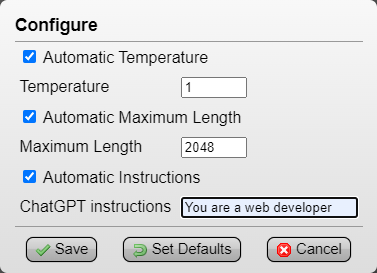
press the [Continue] button instead of 'Add message > type continue > Ctrl+Enter', configure panel optionally saves 'Temperature', 'Maximum Length' and 'Instructions'

2023/09/09のページです。最新版はこちら

スクリプトをインストールするには、Tampermonkey, GreasemonkeyViolentmonkey のような拡張機能のインストールが必要です。

You will need to install an extension such as Tampermonkey to install this script.

スクリプトをインストールするには、TampermonkeyViolentmonkey のような拡張機能のインストールが必要です。

スクリプトをインストールするには、TampermonkeyUserscripts のような拡張機能のインストールが必要です。

このスクリプトをインストールするには、Tampermonkeyなどの拡張機能をインストールする必要があります。

このスクリプトをインストールするには、ユーザースクリプト管理ツールの拡張機能をインストールする必要があります。

(ユーザースクリプト管理ツールは設定済みなのでインストール!)

このスタイルをインストールするには、Stylusなどの拡張機能をインストールする必要があります。

このスタイルをインストールするには、Stylus などの拡張機能をインストールする必要があります。

このスタイルをインストールするには、Stylus tなどの拡張機能をインストールする必要があります。

このスタイルをインストールするには、ユーザースタイル管理用の拡張機能をインストールする必要があります。

このスタイルをインストールするには、ユーザースタイル管理用の拡張機能をインストールする必要があります。

このスタイルをインストールするには、ユーザースタイル管理用の拡張機能をインストールする必要があります。

(ユーザースタイル管理ツールは設定済みなのでインストール!)

このスクリプトの質問や評価の投稿はこちら通報はこちらへお寄せください
作者
drhouse
評価
0 0 0
バージョン
3.0
作成日
2023/05/05
更新日
2023/09/09
大きさ
4.88KB
ライセンス
CC-BY-NC-SA-4.0
対象サイト

OpenAI Playground (ChatGPT) - Continue Button


(Tampermonkey Menu > OpenAI Playground (ChatGPT) - Continue Button > Configure)
Automatic Temperature: set to '1', can be useful to save another Temperature (example, save as '0' for GPT output related to code script) (default: 1)
Automatic Maximum Length: set to '2048' (max), this way GPT will output text without needing to use 'Continue' nearly as much (default: 2048)
Automatic Instructions: optional, saves a prompt guide (example, 'You are a web developer') (default: empty)


press the single [Continue] button instead of having to repeatedly click and type 'Add message > continue > Ctrl+Enter' to continue GPT's output


I also wanted to bring attention to this OpenAI ChatGPT and Playground Redesign RazorGlass userstyle I found, I think it makes Playground look much better: